For years, the “walled garden” of Apple’s ecosystem has made seamless communication between iPhones and Android devices a significant hurdle. While file transfers between the two platforms were possible, they often required cumbersome third-party apps or cloud services.
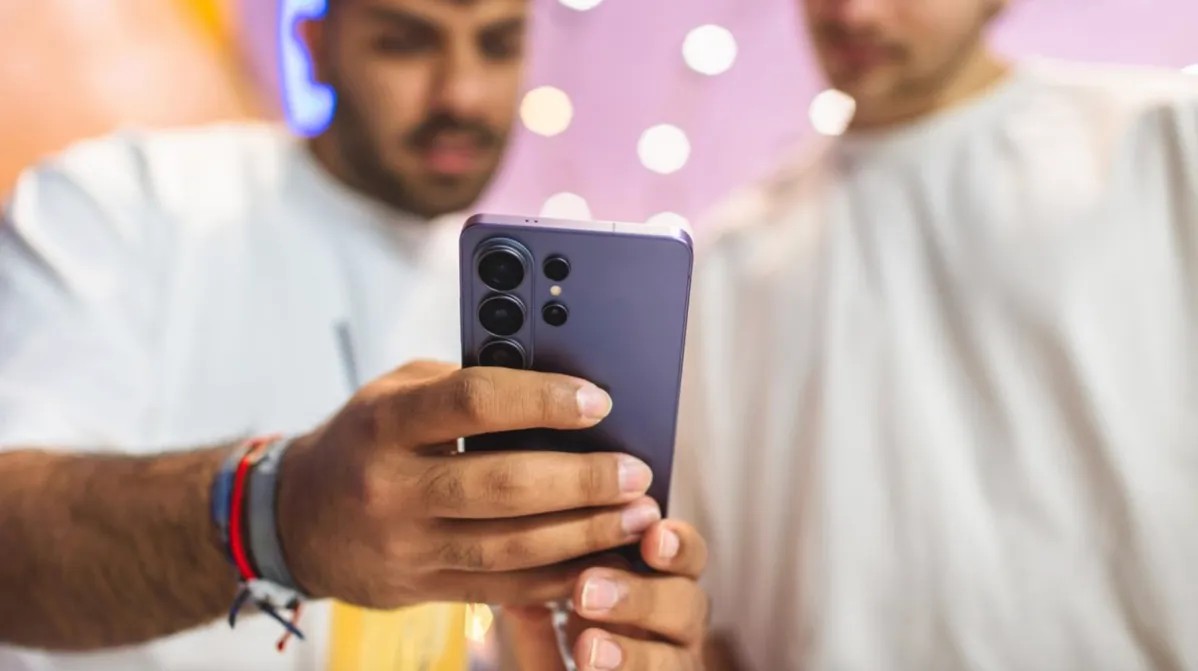
That barrier is finally dissolving. Following Google’s lead with the Pixel series, Samsung has integrated AirDrop support into its Galaxy devices, allowing for direct, high-speed file sharing between Android and Apple hardware.
The End of Ecosystem Isolation
This development marks a significant shift in how mobile operating systems interact. Previously, Apple users relied on AirDrop—a proprietary protocol built into iPhones, iPads, and Macs—to move photos, links, and contacts instantly. Android users were largely left out of this seamless experience.
This move follows a broader trend toward interoperability in the mobile industry. Just as the adoption of the RCS (Rich Communication Services) standard has finally allowed Apple Messages and Google Messages to communicate more effectively, the integration of AirDrop support into Android’s Quick Share ecosystem signals a move toward a more connected, less fragmented digital landscape.
How to Use AirDrop on Android
The feature is integrated directly into the existing Quick Share interface on compatible devices. However, because this is a rolling update, availability may vary depending on your region and device model.
For Samsung Galaxy Users
If you are using a compatible Galaxy device, follow these steps to enable the feature:
1. Enable Sharing: Go to Settings > Connected devices > Quick Share and ensure that “Share with Apple devices” is toggled on.
2. Sending to Apple: Select a file (such as a photo in Google Photos), tap the Share button, and select Quick Share. If the update is active, nearby Apple devices will appear in the list.
3. Receiving from Apple: To receive a file from an iPhone, swipe down from the top of your Galaxy screen with two fingers to access the Quick Settings panel and select Quick Share Contacts. This puts your phone in “receiving mode,” making it visible to the Apple user.
For Google Pixel Users
Google has already begun rolling out this support to the Pixel 9 and Pixel 10 series.
– To manage your settings, navigate to Settings > Connected devices > Connection preferences > Quick Share.
– The process for sending files is identical to the Samsung method: tap the Share icon on any media and look for Apple devices within the Quick Share menu.
Security and Privacy
A common concern with cross-platform sharing is security. To address this, the standard protections remain in place:
– Manual Approval: The receiving Apple device will always trigger a pop-up asking the user to either accept or reject the incoming transfer.
– Visibility Control: Users can keep their devices “invisible” or restrict sharing to specific contacts to prevent unsolicited files from appearing.
Note for Apple Users: If an Android device cannot find your iPhone, ensure your AirDrop settings are set to “Everyone” or “Contacts Only” by navigating to Settings > General > AirDrop.
Summary
The integration of AirDrop functionality into Samsung and Pixel devices effectively removes one of the most frustrating friction points in mobile technology. By merging Apple’s seamless sharing protocol with Android’s Quick Share, the industry is moving toward a future where the choice of smartphone no longer dictates how easily you can share your digital life.